Capabilities

The pipeline, named plainly

Everything below runs locally on Windows. Where a step writes something to disk, it says so — that record is the point.

Version 0.1.0 · private beta

M16 · Eagle Nebula · SHO

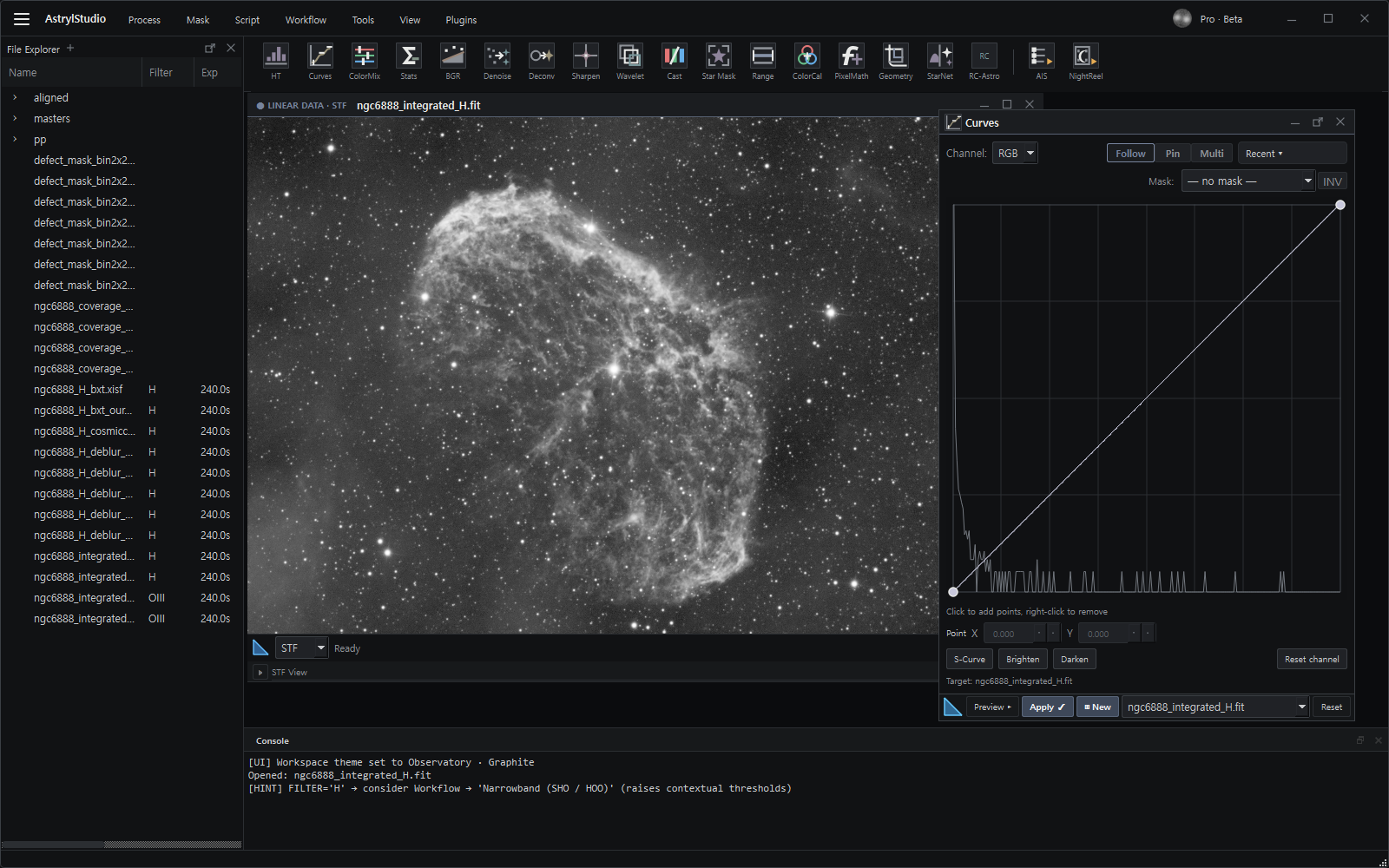
The AstrylStudio workspace with process tools docked around an open frame
The workspace. Processes are dragged onto an open image and applied there.

Calibration

Masters, then lights

Frames are grouped by filter, binning and exposure from their FITS headers. Master bias, dark and flat are built with median or sigma-clipped mean stacking, with dark-flat pairing where you shot them.

Each light is then bias-subtracted, dark-subtracted with exposure scaling, flat-divided, cosmetically corrected and given a pedestal. One-shot-colour sensors are handled from the BAYERPAT header: defect correction is CFA-aware, so a hot pixel is replaced from same-colour neighbours rather than the wrong ones.

Ask about using it
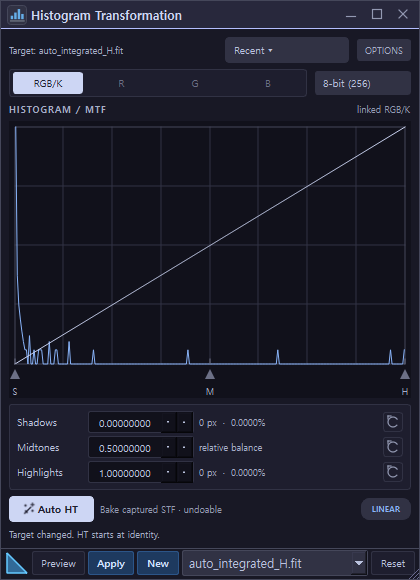
Histogram transformation panel with shadows, midtones and highlights controls
Histogram Transformation — one of the post-processing modules.

Registration and integration

Aligned, weighted, stacked

Auto Integrate Script (AIS) runs the whole of it in one pass — calibration, alignment, integration and auto-crop — from folders of raw frames to a finished stack, with every per-frame measurement written out beside it.

Star-based alignment resamples with Lanczos-3 and reports the residual for every frame. Drizzle integration is available when your sampling supports it. Colour frames are warped with a single transform across all three channels.

Integration weights frames on measured quality, normalizes background and scale locally, and rejects outliers through a single shared engine — Winsorized sigma, percentile, linear-fit or ESD. A guard watches the finished stack and warns in the log when it sees the dark-pixel signature of a feathering or rejection fault.

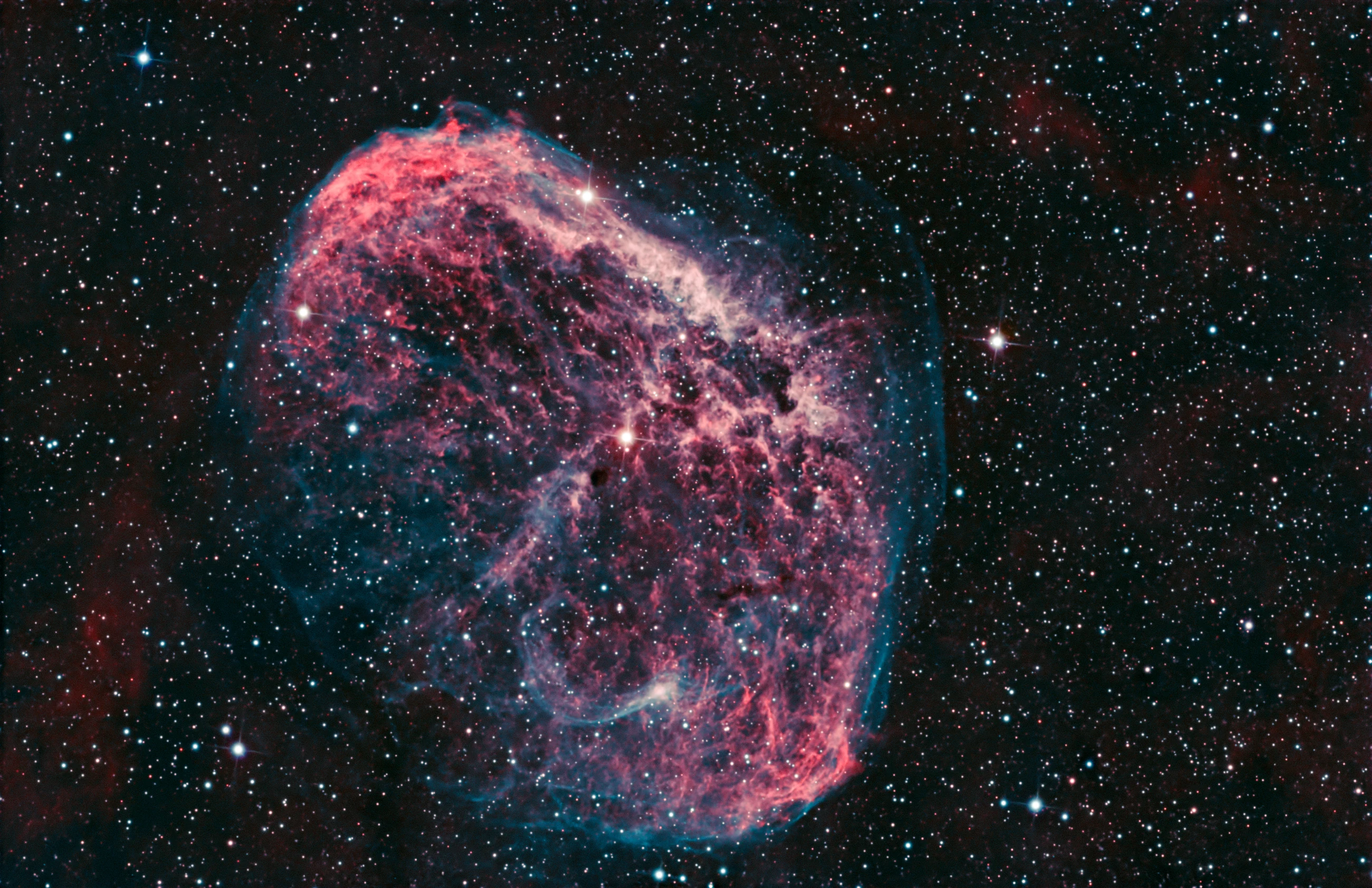
NGC 6888, the Crescent Nebula, in an HOO palette, captured by the developer
NGC 6888 · HOO · captured and processed by the developer.

Plate solving

Solved offline, on your machine

The solver is built in. It detects stars, selects anchors, cone-queries a local Gaia catalogue and fits a TAN or SIP solution with proper-motion correction — then writes the WCS into the FITS header.

There is no astrometry.net call and no solve-field subprocess. Once the catalogue is on disk, solving needs no network at all. A solution is only accepted after an independent cross-match check; when that check cannot be made, it fails rather than guessing.

Scripts

Tools that work on a whole session

These run across folders and nights, not one open image — grouping frames, building masters, stacking, indexing an archive. This is most of what the app is for; the processes below are what you reach for afterwards, on the result.

A whole night, one pass

Auto Integrate Script (AIS)

Folders of raw frames to a finished stack in one pass: grouping by filter, binning and exposure, masters, calibration, star alignment, weighted integration with rejection, and auto-crop. Every per-frame measurement it used is written out beside the result.
An archive, read-only

Data Library

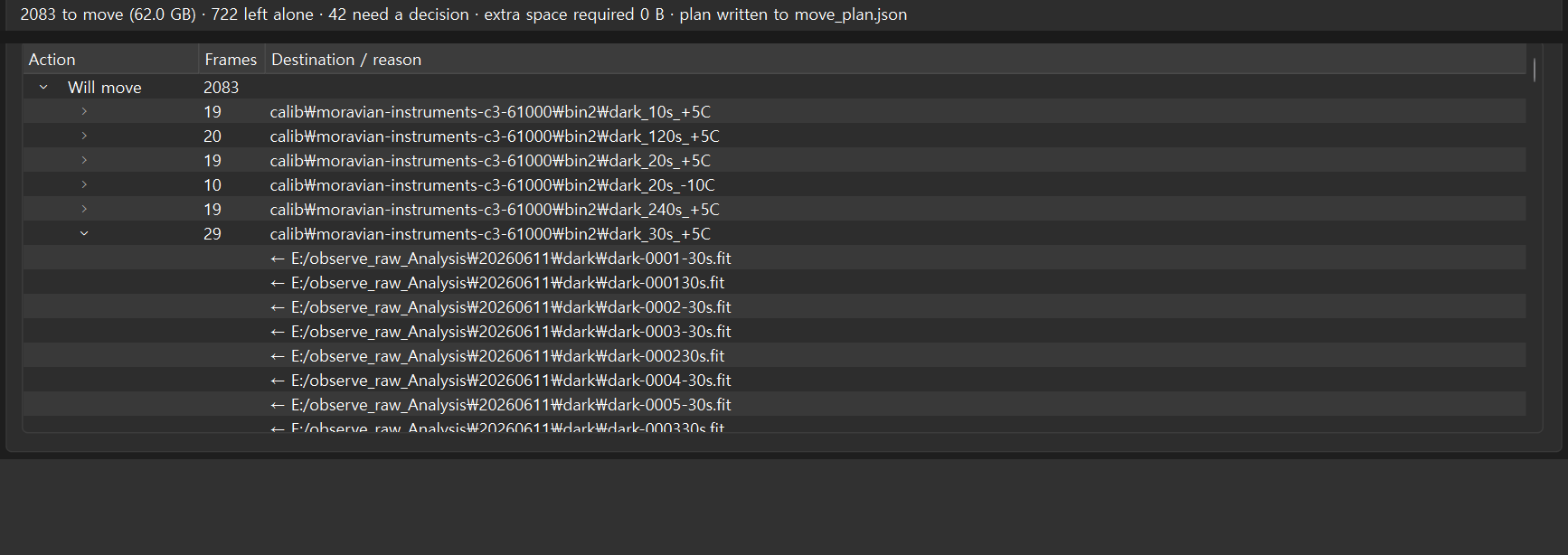
Indexes an archive from FITS headers — nothing is moved, renamed or modified, so it is safe to point at twenty years of data. Then it answers questions across folders: which darks sit within a temperature and exposure tolerance of this light, what is duplicated, which frames disagree with the folder they are in. Filing is a separate step: it builds the whole plan first, writes it to a file, and the last run can be undone.

At the telescope

Live Stacking

Stack at the telescope while the session is still running, with the same per-frame quality control the full path uses. What builds up on screen is the same measured stack you would get afterwards, not a quick preview thrown away at the end.

  • NightReelReplays a finished session as video — the stack accumulating frame by frame, the signal-to-noise curve, and the accept/reject timeline across every night.
  • DiscoveryA light curve per star from the aligned frames, judged against the session's own noise trend, with a Gaia cross-check for sources that have no catalogue counterpart.
  • Recipes & templatesSave a sequence of processes and re-run it on another night. Parameters and run logs are stored with the output.
  • Folder watcherPoint it at a directory and it picks frames up as they land.

Data Library, live

What it finds, and what it would do about it

The same archive, two views from the app. Hover the panel — or use the buttons — to move between what the Library found and the plan it wrote. Nothing on disk changes until you apply it.

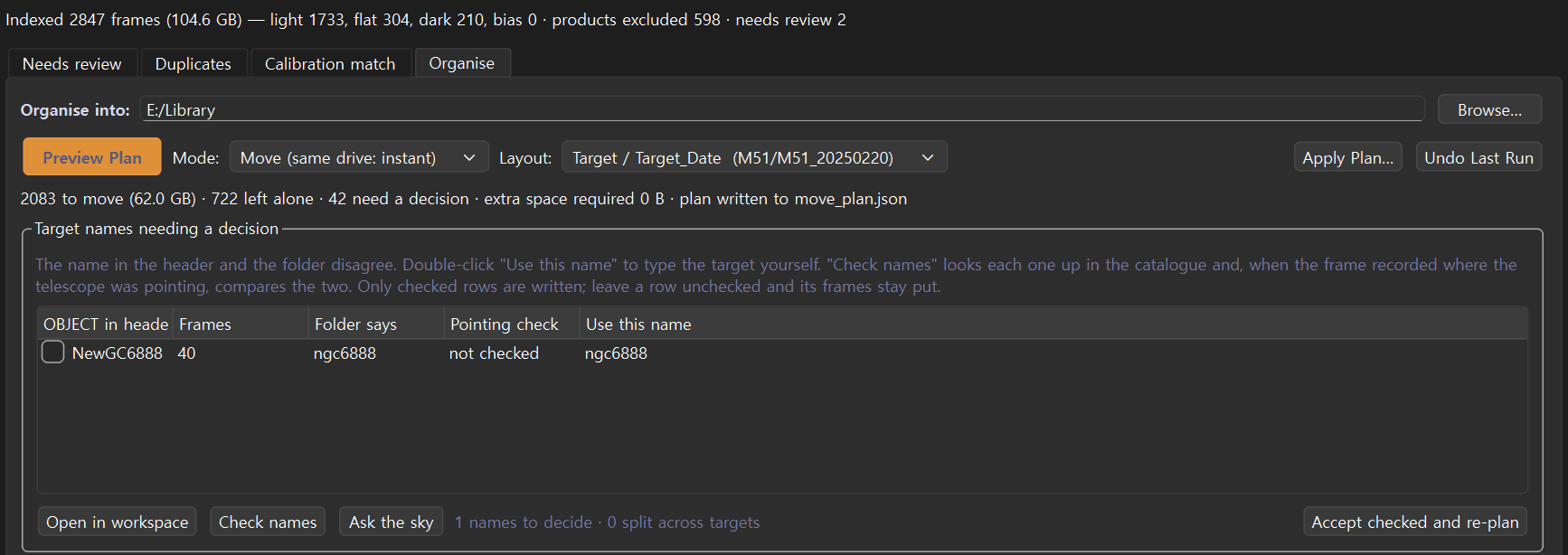
The Data Library Organise tab: 2,847 frames indexed, and a target whose header says NewGC6888 while its folder says ngc6888, flagged for a decision rather than filed on a guess. The filing plan: 2,083 frames grouped into destination folders by sensor, binning, exposure and temperature, one row opened to show the real source files that would move into it.
A real archive: 2,847 frames, 104.6 GB. The header and the folder disagree on the target's name, so those frames go to a review list instead of being filed on a guess. The plan is a file — move_plan.json — and the last run can be undone.

Processes

One image at a time — open one to see it

These run on an open image, not the whole session. Each one folds open to its real panel from the app — the controls are the app’s, shown as they appear; what you cannot do here is drag the sliders, because that is the Qt engine, not the page.

Measuring the instrument

Camera Characterization Details

Photon-transfer measurement of sensor gain in e-/ADU and read noise in electrons, from pairs of frames rather than from the datasheet — the EGAIN written into a header is often wrong, and every noise figure downstream inherits that error.

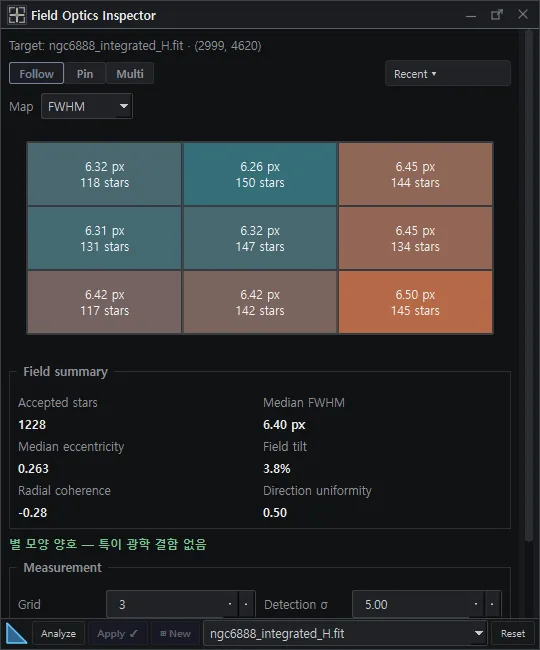
Optics Inspector Open the panel

Tilt, coma and tracking error read from star shapes across the field, so a soft corner is attributed rather than guessed at.

The Optics Inspector panel in AstrylStudio
Field Optics Inspector, after Analyze — the field summary and the FWHM map.
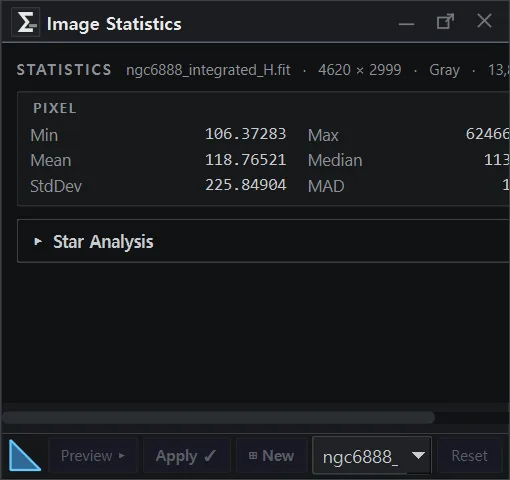
Statistics Open the panel

Per-channel readouts for the whole image or a selection — mean, median, deviation, and the histogram they came from.

The Statistics panel in AstrylStudio
Per-channel readouts on the open frame.

Preparation

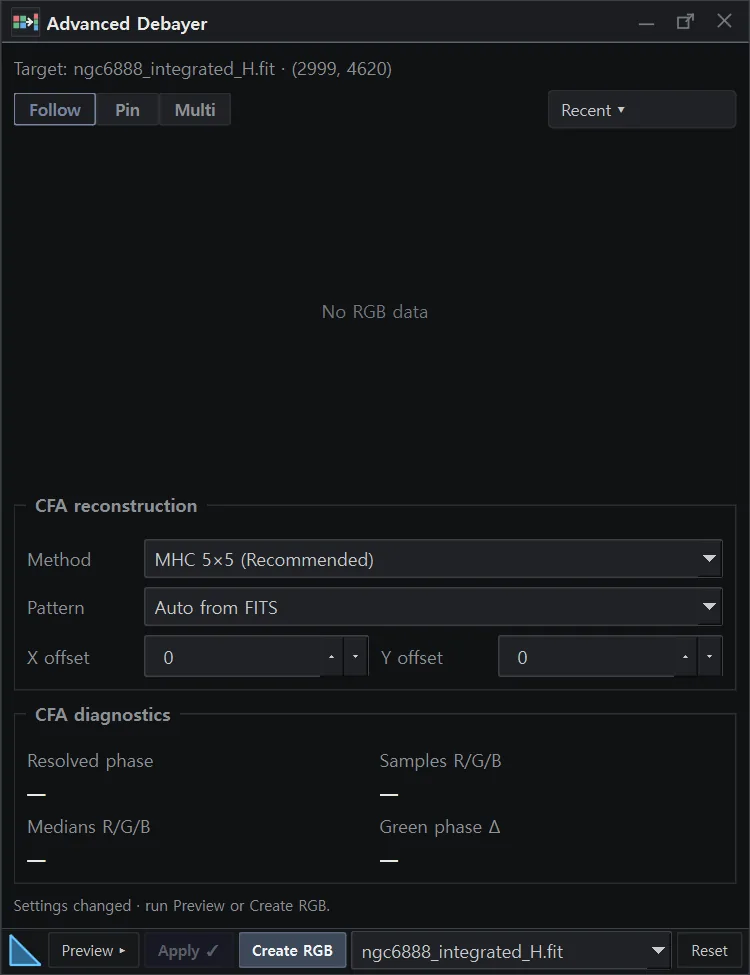
Debayer Open the panel

One-shot-colour raw frames to RGB, driven by the BAYERPAT header. Mono frames are untouched by it.

The Debayer panel in AstrylStudio
Crop & Geometry Details

Crop, rotate and flip, with resampling.

Stretch and tone

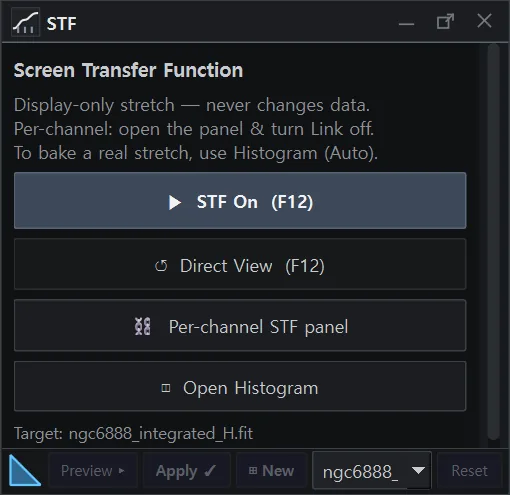
Screen Transfer Function Open the panel

The auto-stretch the viewer uses to make linear data visible, applied to the pixels when you want it applied.

The Screen Transfer Function panel in AstrylStudio
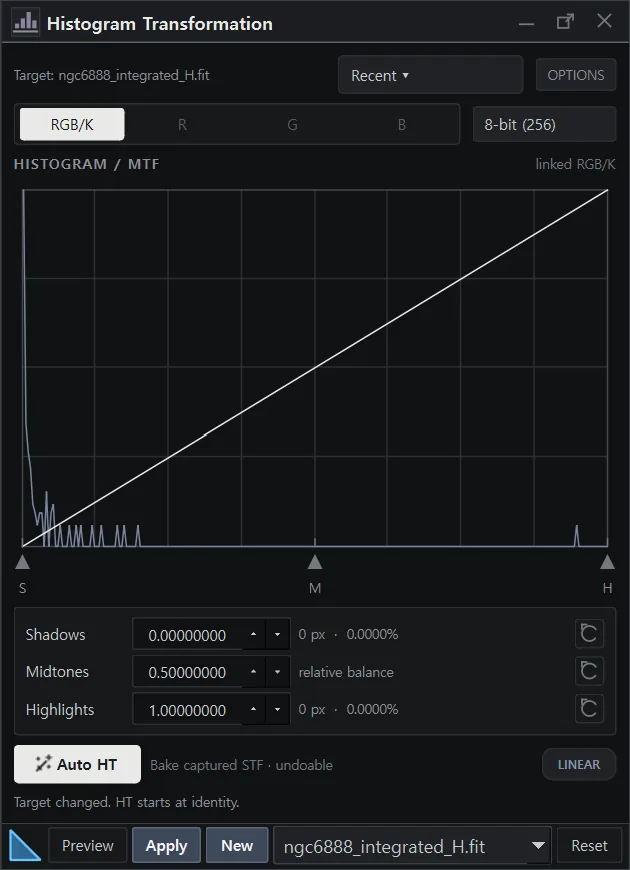
Histogram Transformation Open the panel

Shadows, midtones and highlights against a live histogram, with a preview before it is applied.

The Histogram Transformation panel in AstrylStudio
Shadows, midtones and highlights over the live histogram.
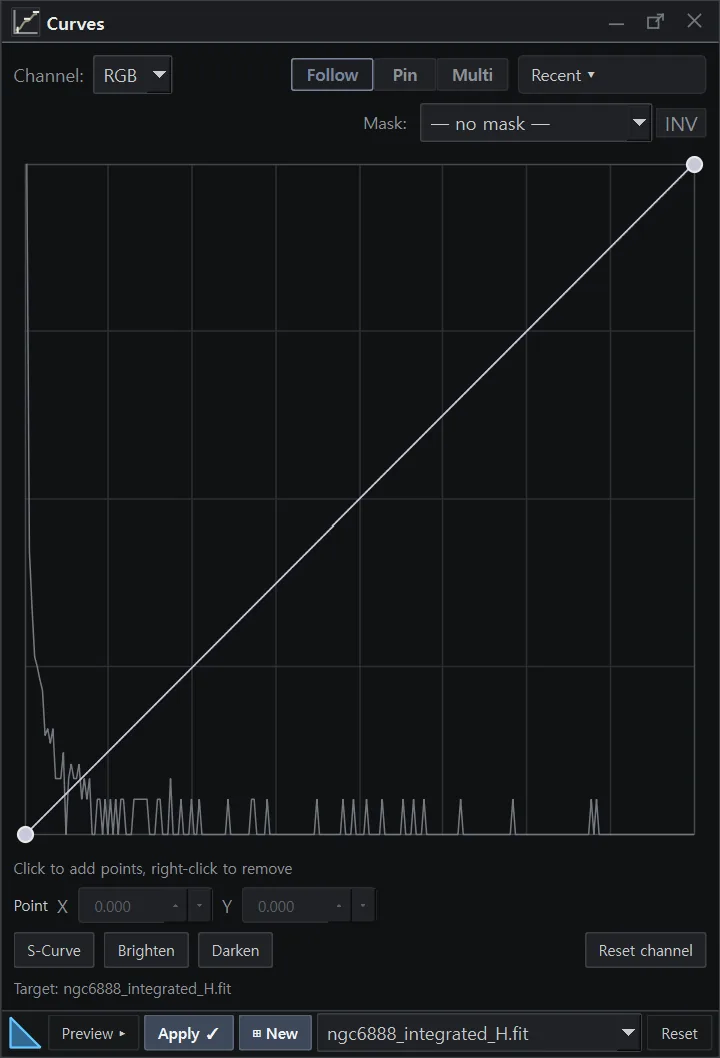
Curves Open the panel

Curve editing on luminance and on individual channels.

The Curves panel in AstrylStudio
The curve over the image's own histogram.
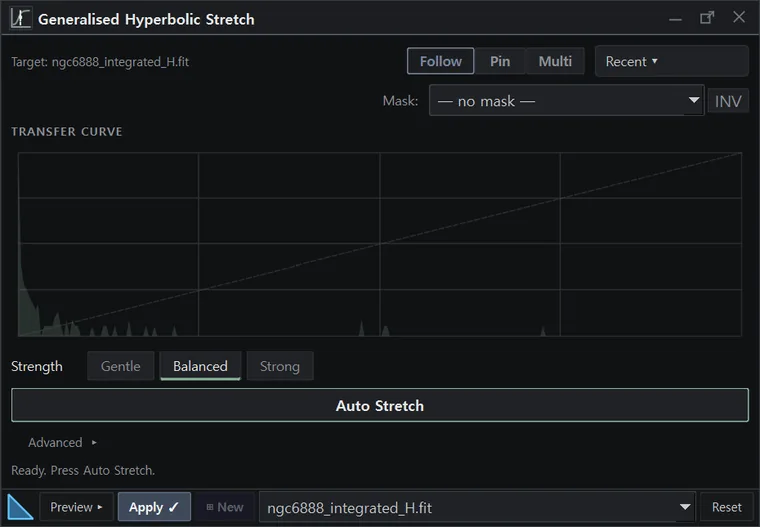
Generalised Hyperbolic Stretch Open the panel

A stretch with an explicit control over where contrast is spent, for data a midtone transfer handles badly.

The Generalised Hyperbolic Stretch panel in AstrylStudio
Develop Details

Direct tonal adjustment on an already-stretched image.

Colour

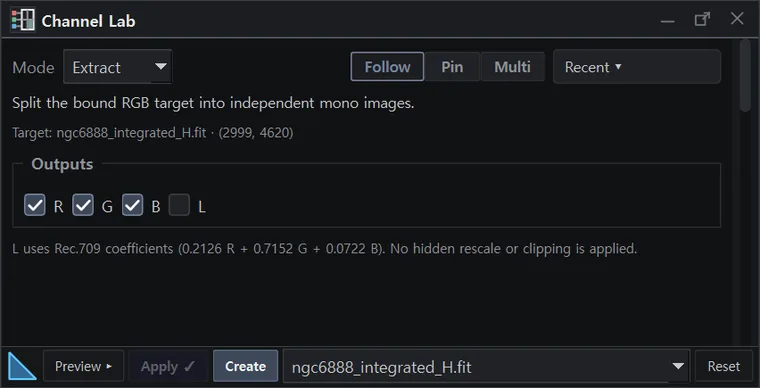
Channel combination Open the panel

Build RGB or LRGB from separate channels, including narrowband palettes.

The Channel combination panel in AstrylStudio
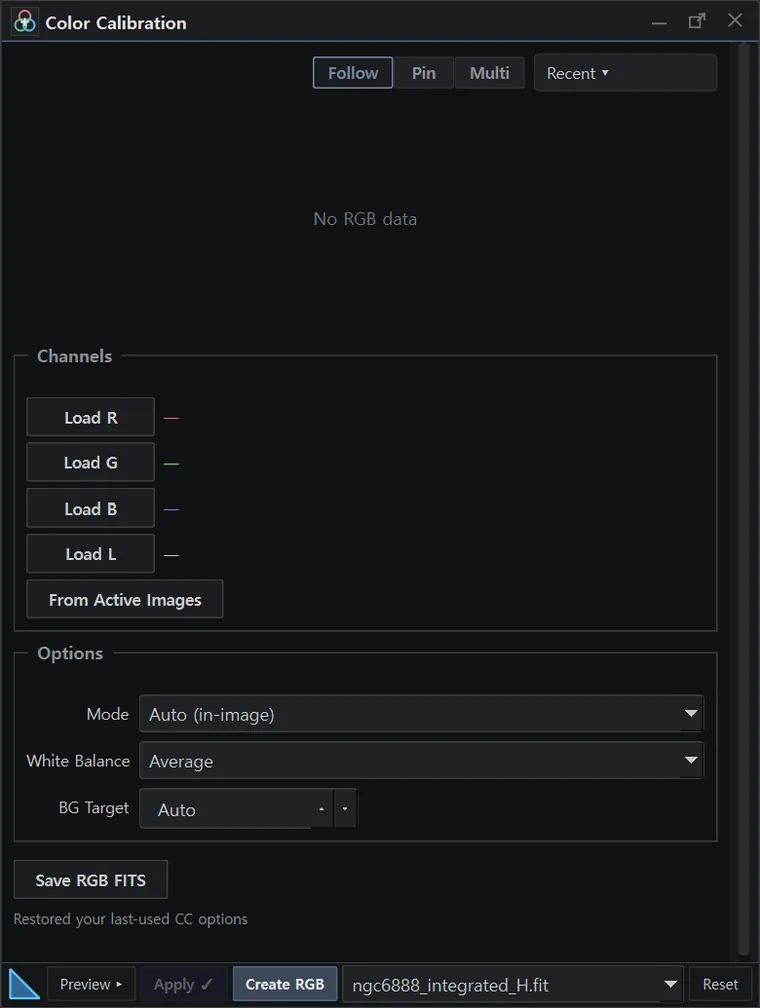
Colour Calibration Open the panel

Background neutralisation and white balance from selected regions.

The Colour Calibration panel in AstrylStudio
Photometric Colour Calibration Details

White balance from Gaia photometry: the field is solved, detected stars are cross-matched to the catalogue, and the per-channel scales come from a regression of measured against predicted flux.

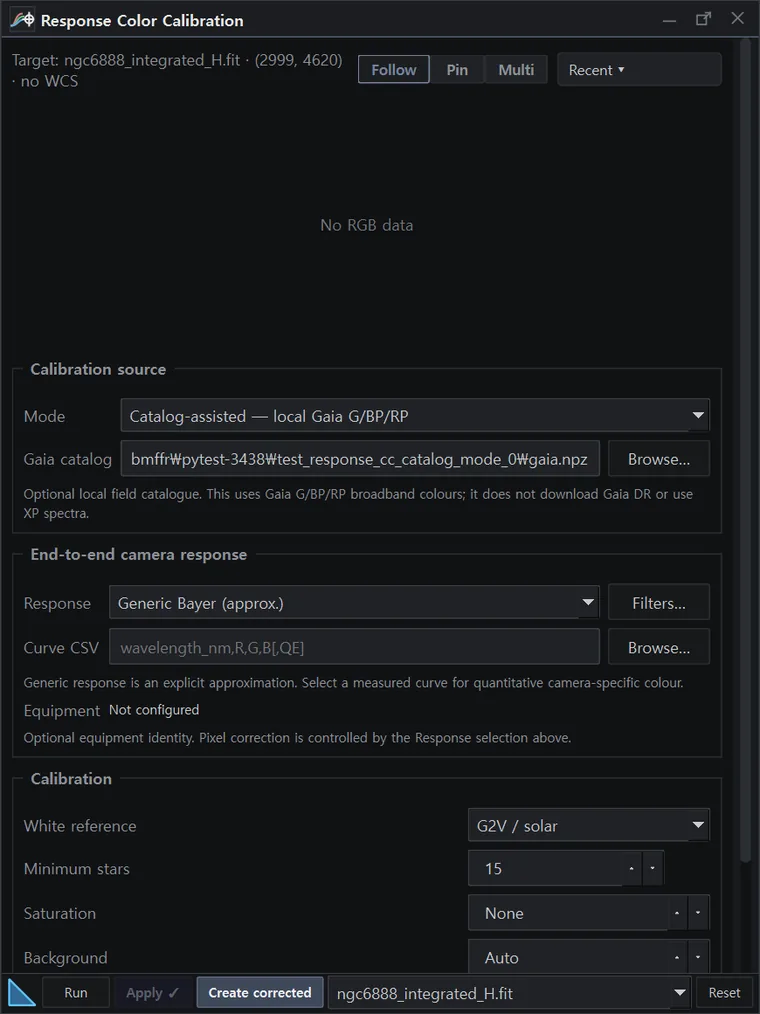
Spectral Colour Calibration Open the panel

The same idea with the filter response taken into account rather than a broadband approximation.

The Spectral Colour Calibration panel in AstrylStudio
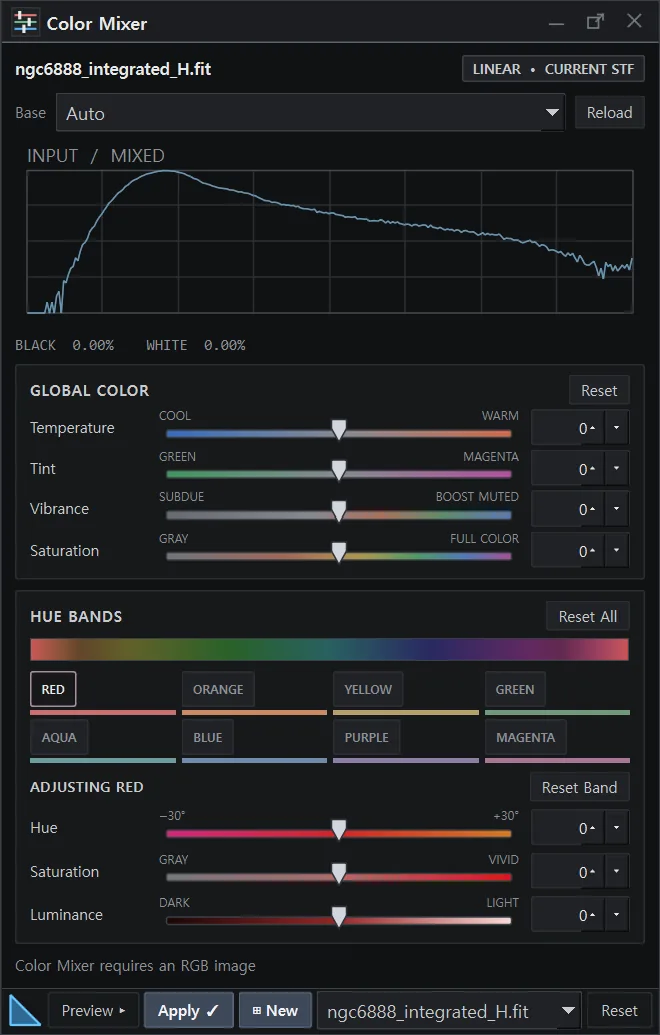
Colour Mixer Open the panel

Per-hue mixing, for shifting one colour without dragging the rest with it — and saturation by hue in the same place, so a nebula can be lifted without turning the stars into beads.

The Colour Mixer panel in AstrylStudio
Per-hue mixing and saturation.
Colour Cast Reducer Details

Removes the green cast narrowband and OSC data tend to carry.

Detail

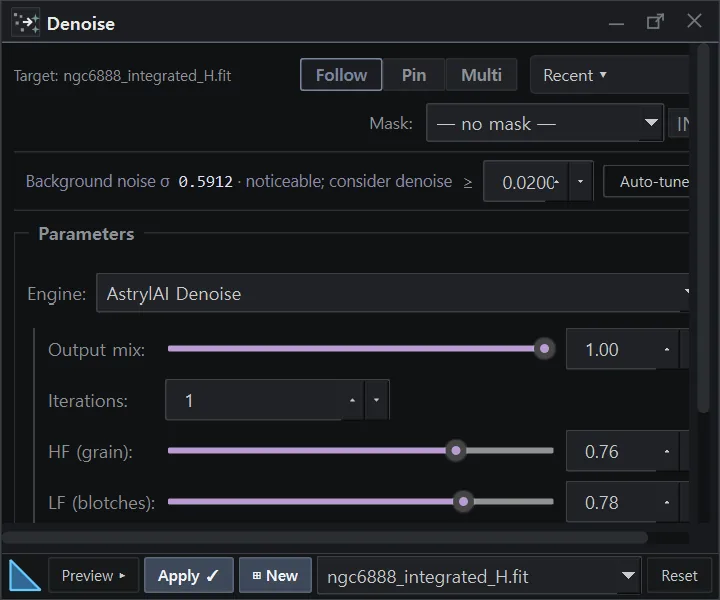
Denoise Open the panel

Classical filtering, or the AstrylAI model. Both run locally; the model uses a compatible GPU when there is one.

The Denoise panel in AstrylStudio
Classical filtering or the AstrylAI model.
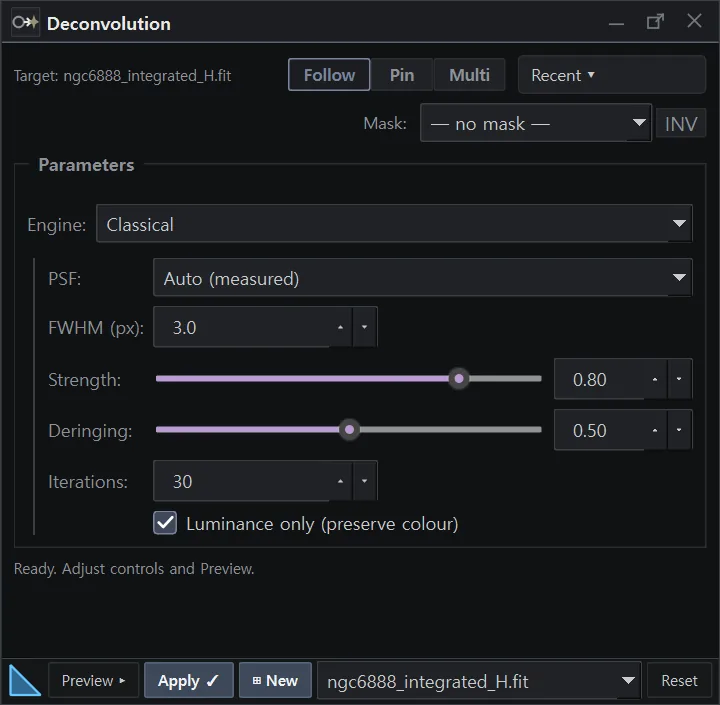
Deconvolution Open the panel

Regularised Richardson-Lucy with a multiscale regulariser and deringing, blended through a star mask so the sky keeps its own grain instead of mottling. A model-based engine is in the build but not finished, and is not what this row describes.

The Deconvolution panel in AstrylStudio
Regularised Richardson–Lucy with a star mask.
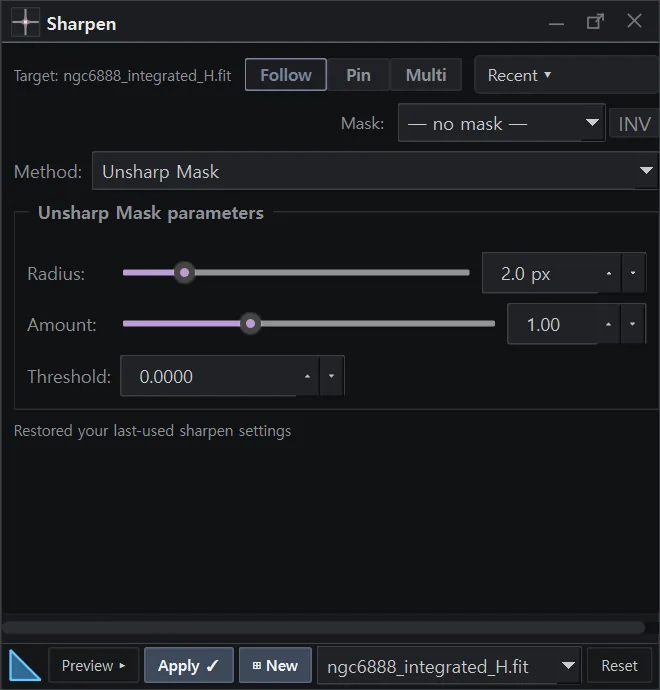
Sharpen Open the panel

Unsharp-mask style sharpening with edge protection.

The Sharpen panel in AstrylStudio
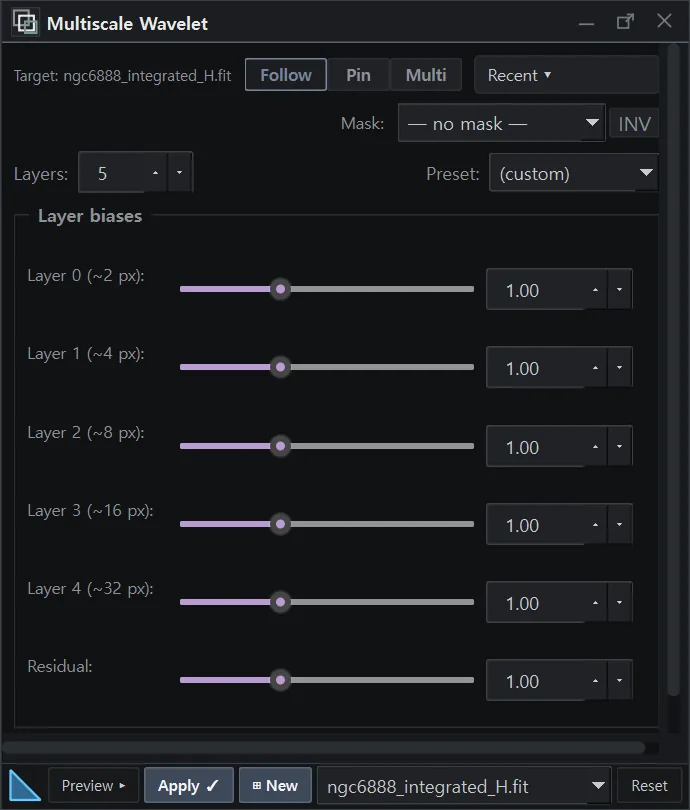
Multiscale Wavelet Open the panel

Work on one spatial scale at a time — the layer where faint structure and noise are separable.

The Multiscale Wavelet panel in AstrylStudio
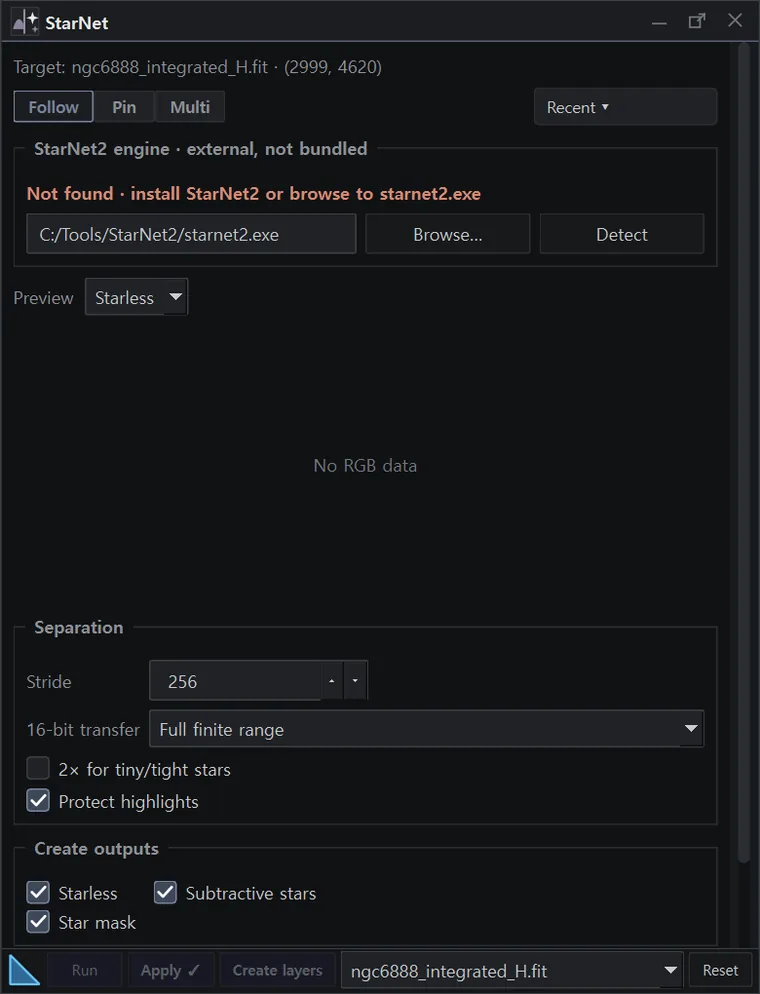
Star Separation Open the panel

Splits stars from the rest, so the two can be stretched and sharpened on their own terms and recombined.

The Star Separation panel in AstrylStudio

Masks and pixel work

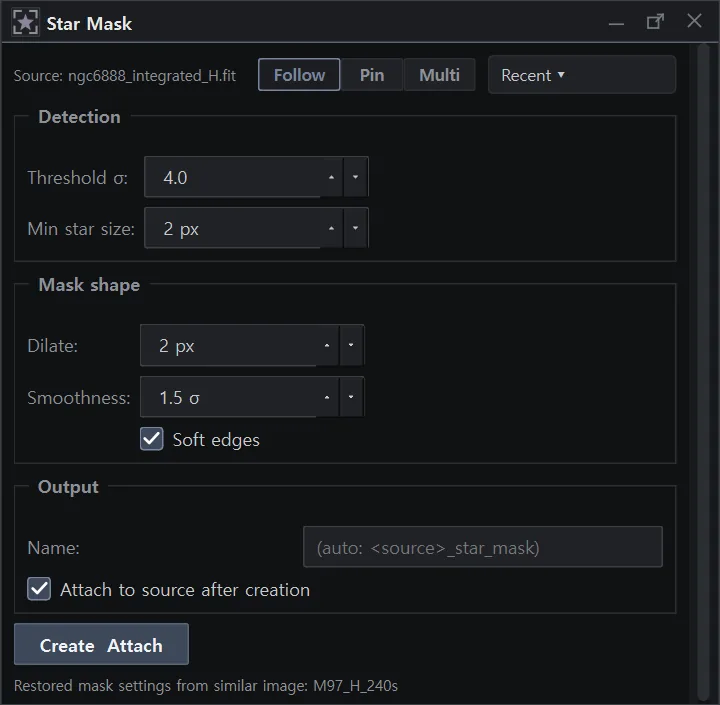
Star Mask Open the panel

A mask from detected stars, with size and softness under control.

The Star Mask panel in AstrylStudio
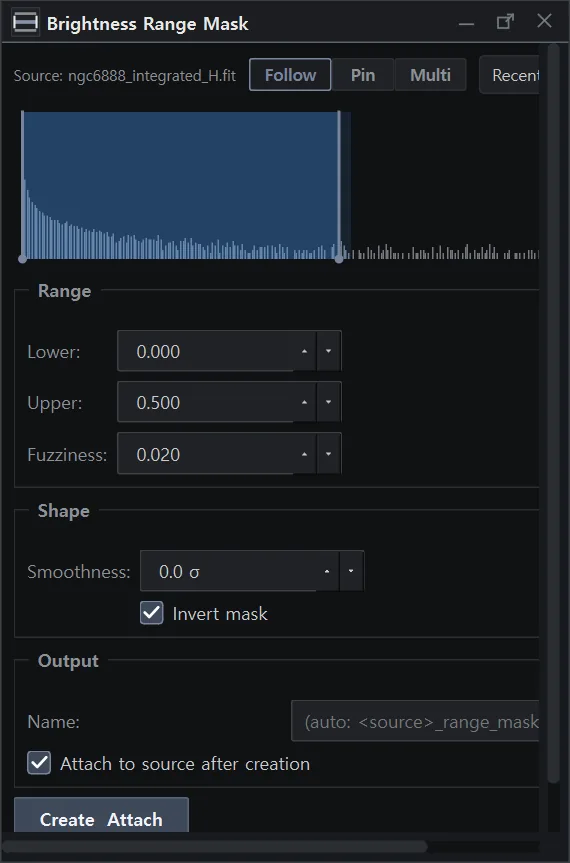
Brightness Range Mask Open the panel

A mask from a brightness range, for confining any process to it.

The Brightness Range Mask panel in AstrylStudio
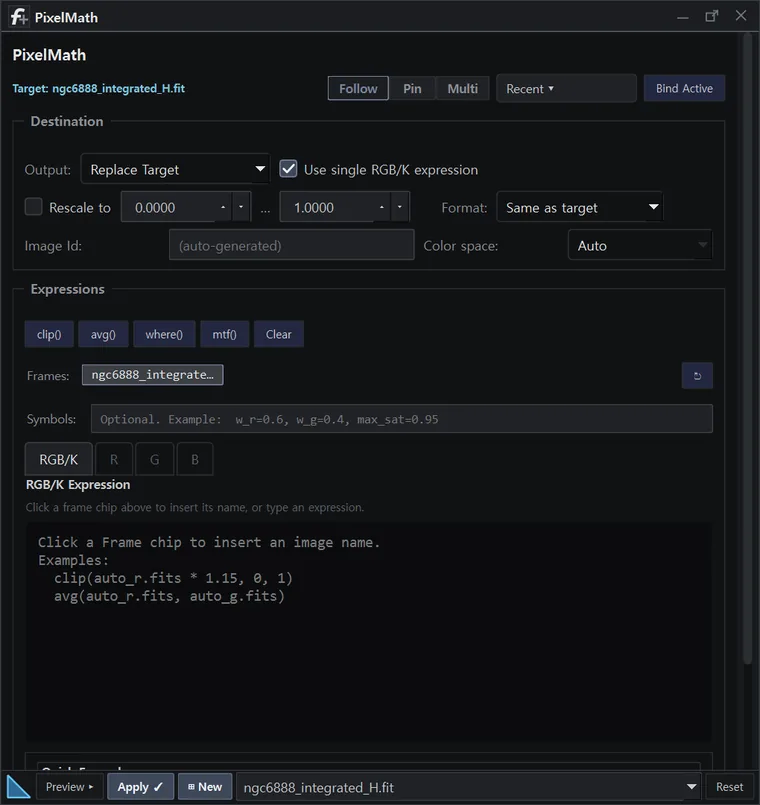
PixelMath Open the panel

Arithmetic across open images with named variables and the usual functions.

The PixelMath panel in AstrylStudio

Background

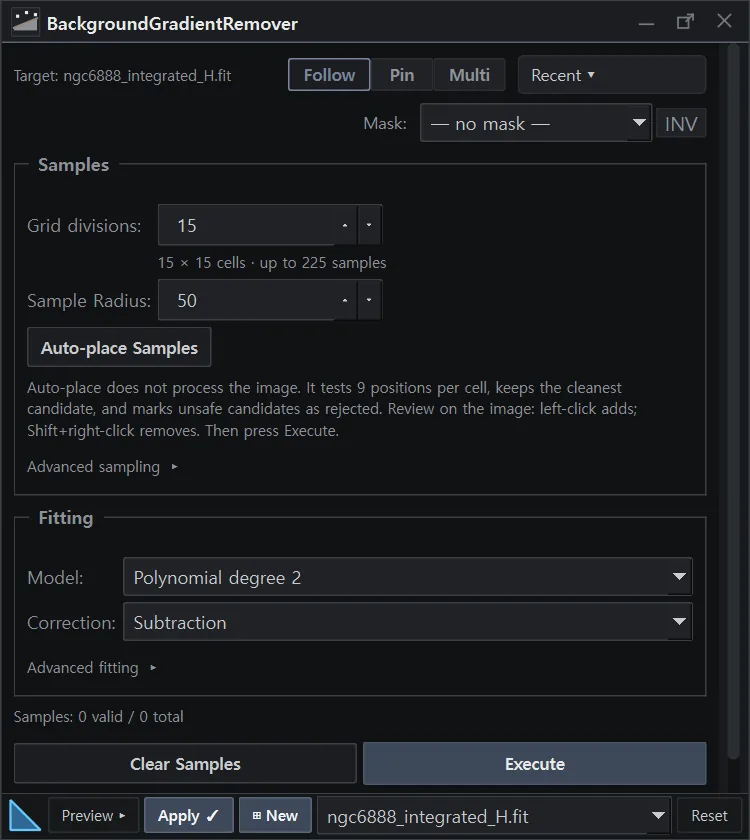
Background Gradient Remover Open the panel

A surface fitted to sampled points and subtracted or divided out. Samples can be generated on a grid or placed by hand, and stars are rejected from them.

The Background Gradient Remover panel in AstrylStudio
At a glance
PlatformWindows 10 and 11, 64-bit. One installer, no runtime to fetch separately.
ReadsFITS, XISF. One-shot-colour raw frames are debayered from the BAYERPAT header.
WritesFITS as the working format. Export produces TIFF, PNG or JPEG with the displayed stretch baked into the pixels.
CalibrationMaster bias / dark / flat, dark-flat pairing, exposure-scaled dark subtraction, CFA-aware cosmetic correction, pedestal.
RegistrationStar-based alignment, Lanczos-3 resampling, optional drizzle, per-frame residuals.
RejectionSigma clip, percentile, Winsorized sigma, linear fit, ESD — one shared implementation for master frames and light integration alike.
Plate solvingInternal, offline, against a local Gaia catalogue. WCS written to the header.
Running it
Memory16 GB is a sensible floor for full-frame stacks. Master frames switch to a chunked accumulation above about 4 GB, and the final light combine reads from disk in chunks, but each filter's lights are held in memory while they are measured and aligned, so very large sessions need more.
Working driveKeep the session on a fast internal drive. Registration writes an aligned copy of every frame: a 104-frame 15-megapixel session is about 9 GB of intermediates, and reading them back from an external disk dominates the run.
GPUNot required. The two AstrylAI models use a compatible GPU through DirectML when one is present and the CPU when it is not; nothing else in the pipeline needs one.
Alignment speedThe Lanczos-3 resampler is JIT-compiled when numba is available — measured at 1.6 s against 45 s per 15-megapixel frame without it. It is optional, and the pipeline is correct either way.
Network useLicence sign-in, price list and release notes, Gaia catalogue download and target lookup when asked, run reports (a release build asks first; the beta sends them by default and says so). No image data is transmitted.
LogsWritten locally to %APPDATA%\AstrylStudio\logs\. Help ▸ Export Diagnostics bundles them for a bug report; the bundle deliberately excludes your session and licence files.